View Billing Dashboard
Views the billing dashboard.
View Billing Dashboard Screen
-
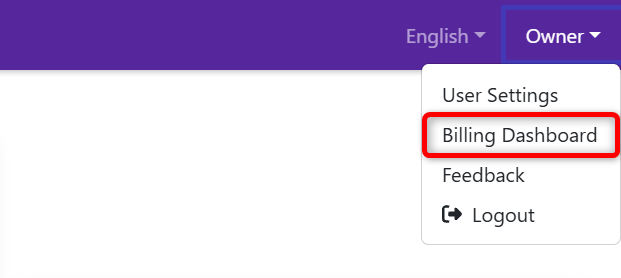
Click the name part (account menu) in the upper right part of the management website.
-
Click “Billing Dashboard”.
-
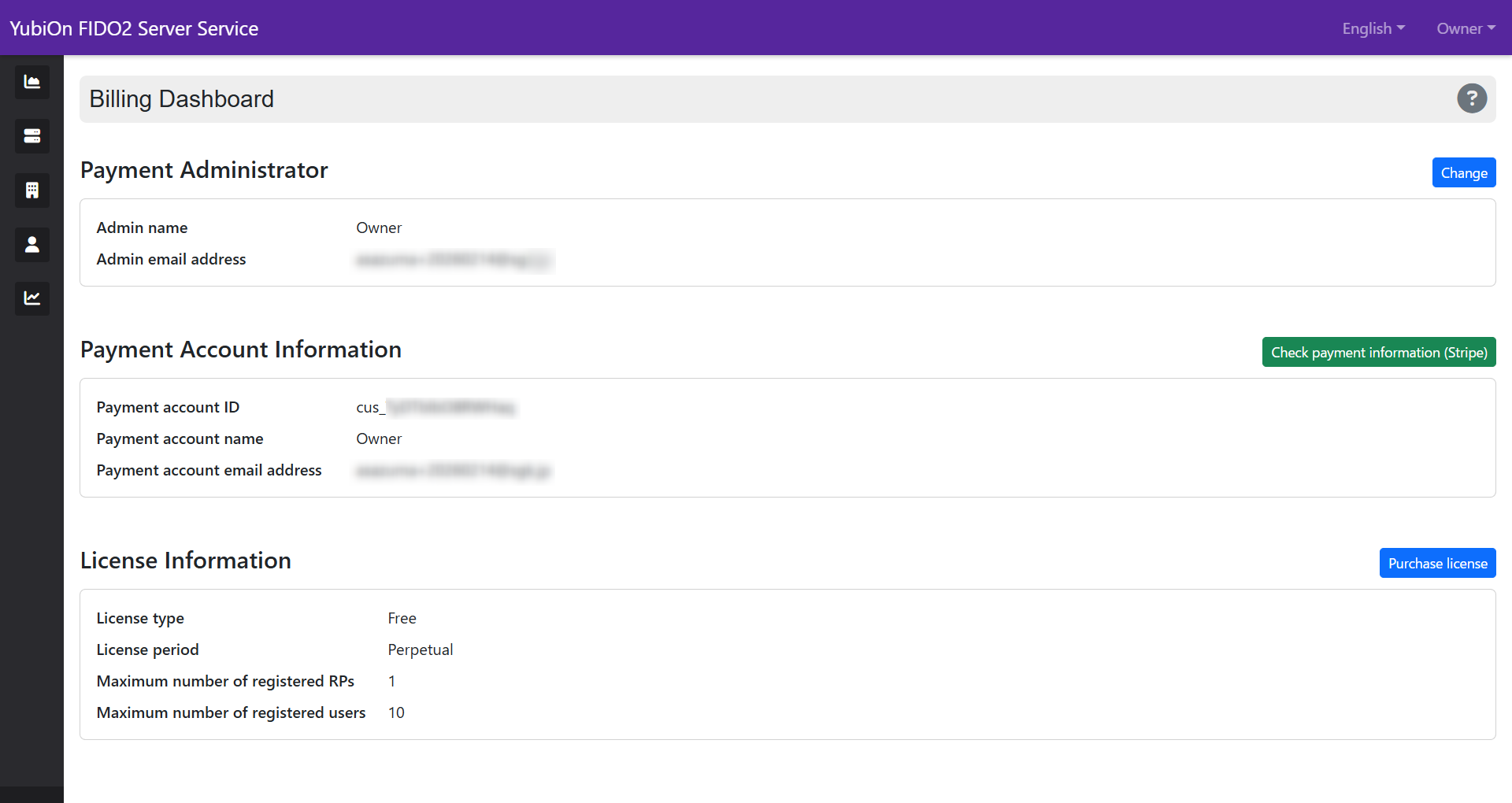
The billing dashboard screen opens, and information related to payments and license agreements is displayed.
Descriptions
Payment Administrator Information
Information for the administrator in charge of payments for this service.
- Change button
Button to change the payment administrator. - Admin name
Name of the payment administrator. - Admin email address
Email address of the payment administrator.
Payment Account Information
Displays the status of linkage with the online payment service “Stripe”.
- Create payment account button
Button to create an account that links with “Stripe”.
* It will not be displayed after creation. - Check payment information (Stripe) button
Button that allows you to Check/Change payment information and Download past receipts. Transition to the Stripe customer portal.
* Displayed after the payment account is created. - Payment Account ID
Customer ID for management in Stripe. - Payment Account Name
Payer’s name. - Payment Account Email Address
Payer’s email address.
License Information
Displays current plan details and usage results.
- License type
The currently applied license (plan) name is displayed. “Free” is set immediately after service registration. - License period
Displays the license expiration date.
For free licenses
- Purchase license button
Button to purchase a paid license. - Maximum number of registered RPs
The maximum number of RPs that can be registered. An error will occur if you try to register more than the maximum number. - Maximum number of registered users
The maximum number of users that can be registered. An error will occur if you try to register more than the maximum number.
For paid licenses
- License update button
Button to update the current license after purchasing a license. - Cancel license button
Used to stop automatic renewal of a paid license. - Maximum number of MAUs
The maximum number of MAUs (Monthly Active Users) available. If the MAU exceeds the maximum value, charges will be incurred for the excess.
The maximum number depends on the plan. - MAU usage count this month
Represents the number of active users this month.
MAU (Monthly Active User) counting method
MAU (Monthly Active Users) refers to the total number of non-duplicate users (unique users) who used the service at least once during a month.
MAUs for this service are calculated based on the following rules.Counting period
The period from the 1st to the last day of each month is covered.Active operation definition
During the period, if a user authenticates to this service one or more times, that user is defined as an “active user.”Unique count
Even if one user performs the above operation multiple times during the aggregation period, it will be counted as “1” as a MAU.
Display examples by status
The displayed buttons and items change as follows according to the usage status.
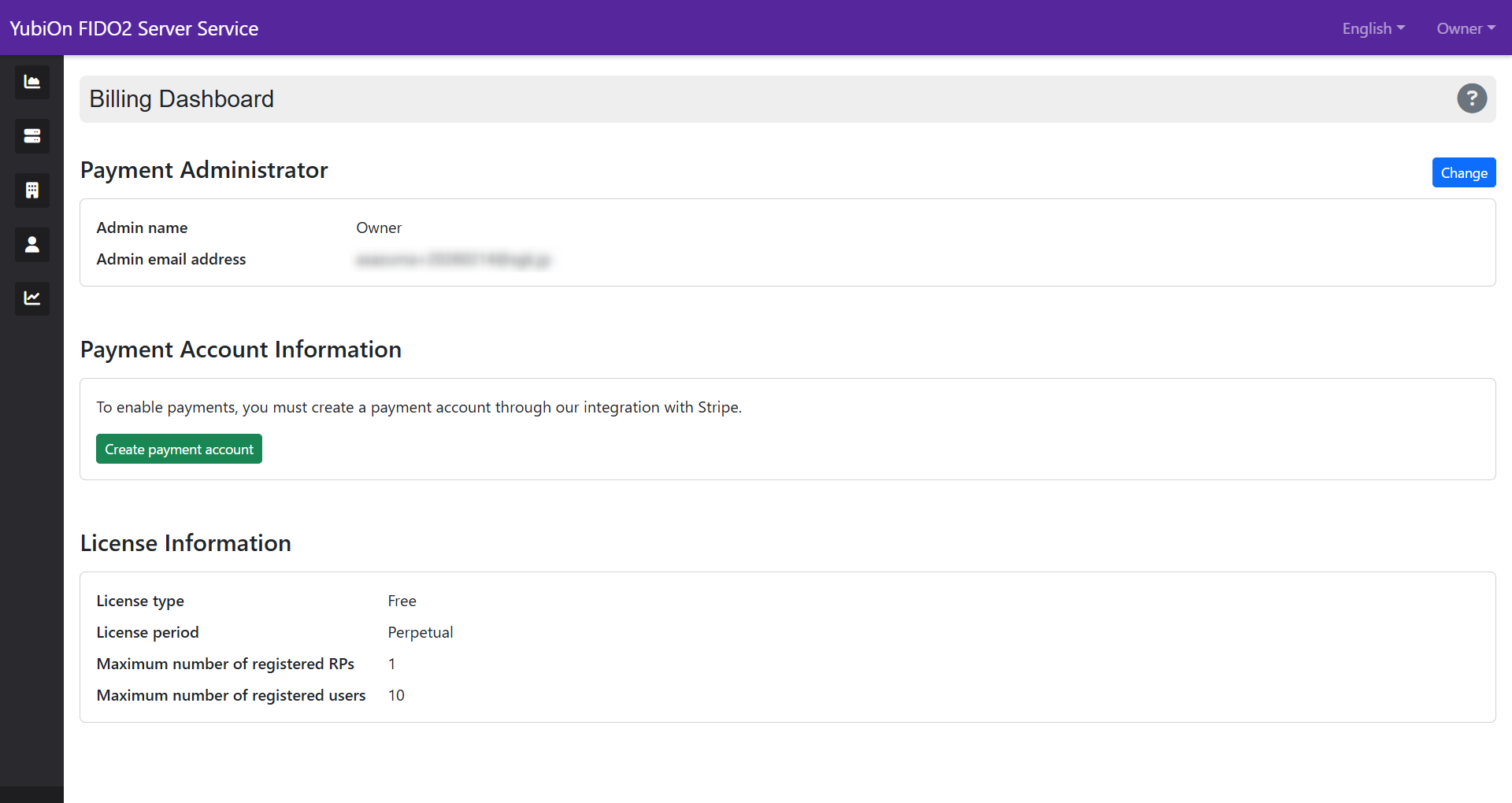
[1] State where the payment account has not been created
State of those considering a paid license for the first time.
- Payment account information: First, you need to “Create payment account” and build the payment infrastructure.
[2] State after creating the payment account
State after creating the payment account where you can purchase a paid license.
- Payment account information: The payment account ID is displayed, and access to the Stripe customer portal becomes possible.
- License information: You can proceed to the paid plan selection screen from the “Purchase license” button.
[3] State after purchasing a paid license
State after purchasing a paid license where you can update or cancel the license.
- License information: The license information is updated to the purchased plan. The number of MAU uses for the current month will be counted in real time.
You can update the license from the “License update” button.
You can cancel the paid license from the “Cancel license” button.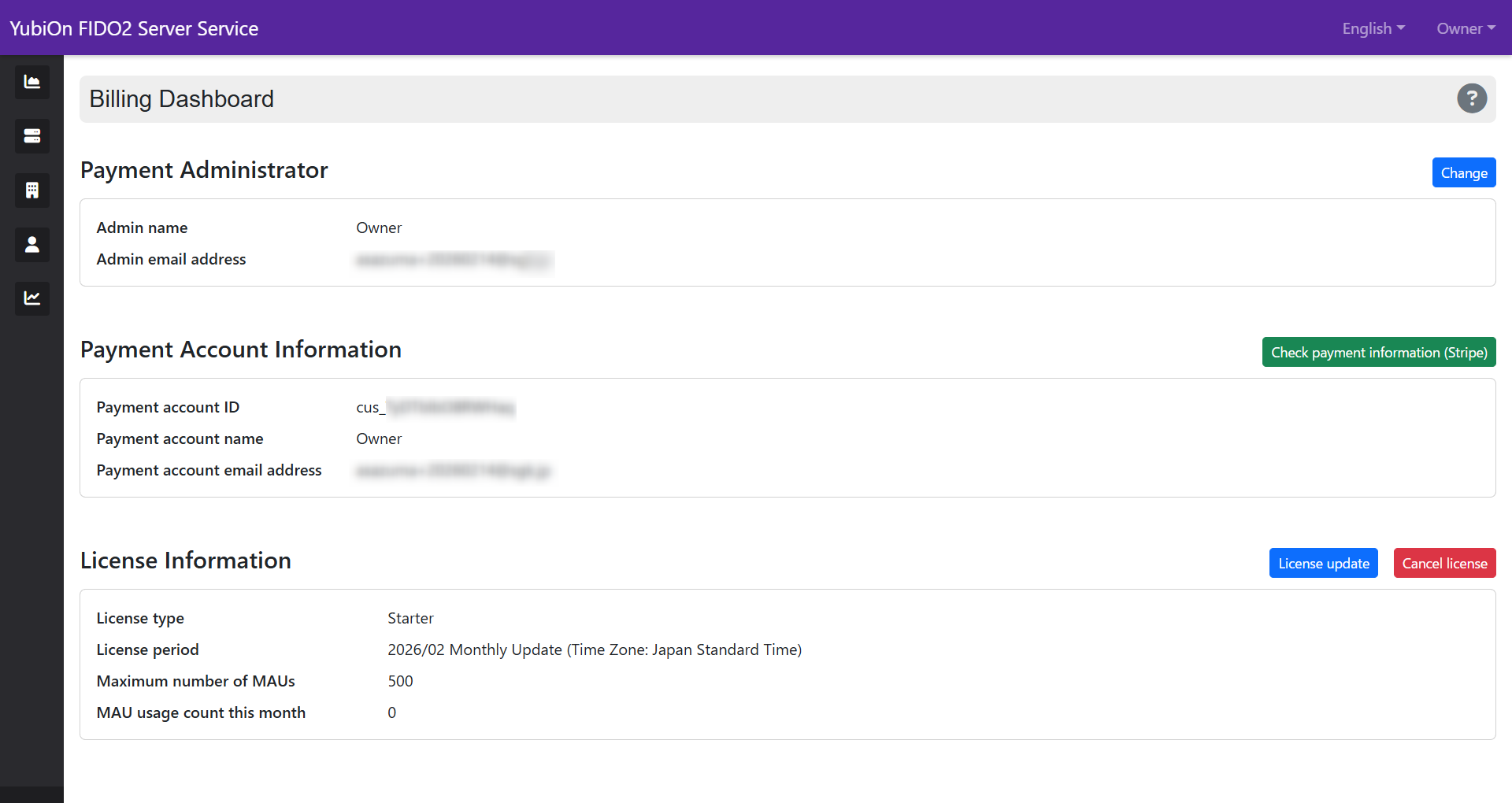
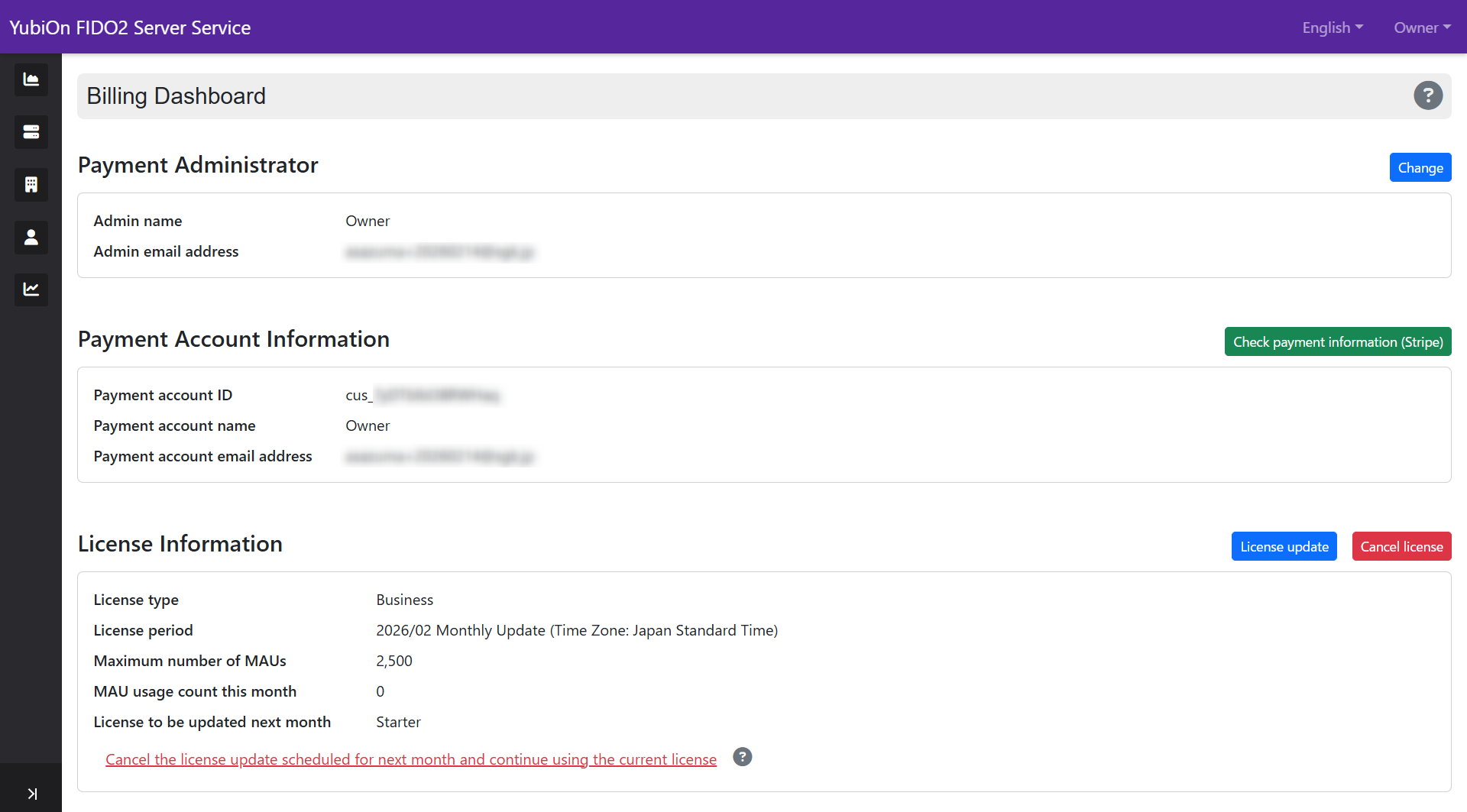
[4] State after license update (downgrade)
State after downgrading from Business plan to Starter plan.
- License information: The name of the plan to be applied from the next period is displayed in the “License to be updated next month” field.
If you want to cancel the reservation, you can return to continuing the current plan from the cancel link at the bottom.