Change Credit Card Information/Billing Address
Describes how to change the registered credit card and manage information such as the address and email address displayed on the invoice.
1. Accessing the Payment Management Screen
Select “Billing Dashboard” from the account menu.
-
Click the “Check payment information (Stripe)” button.
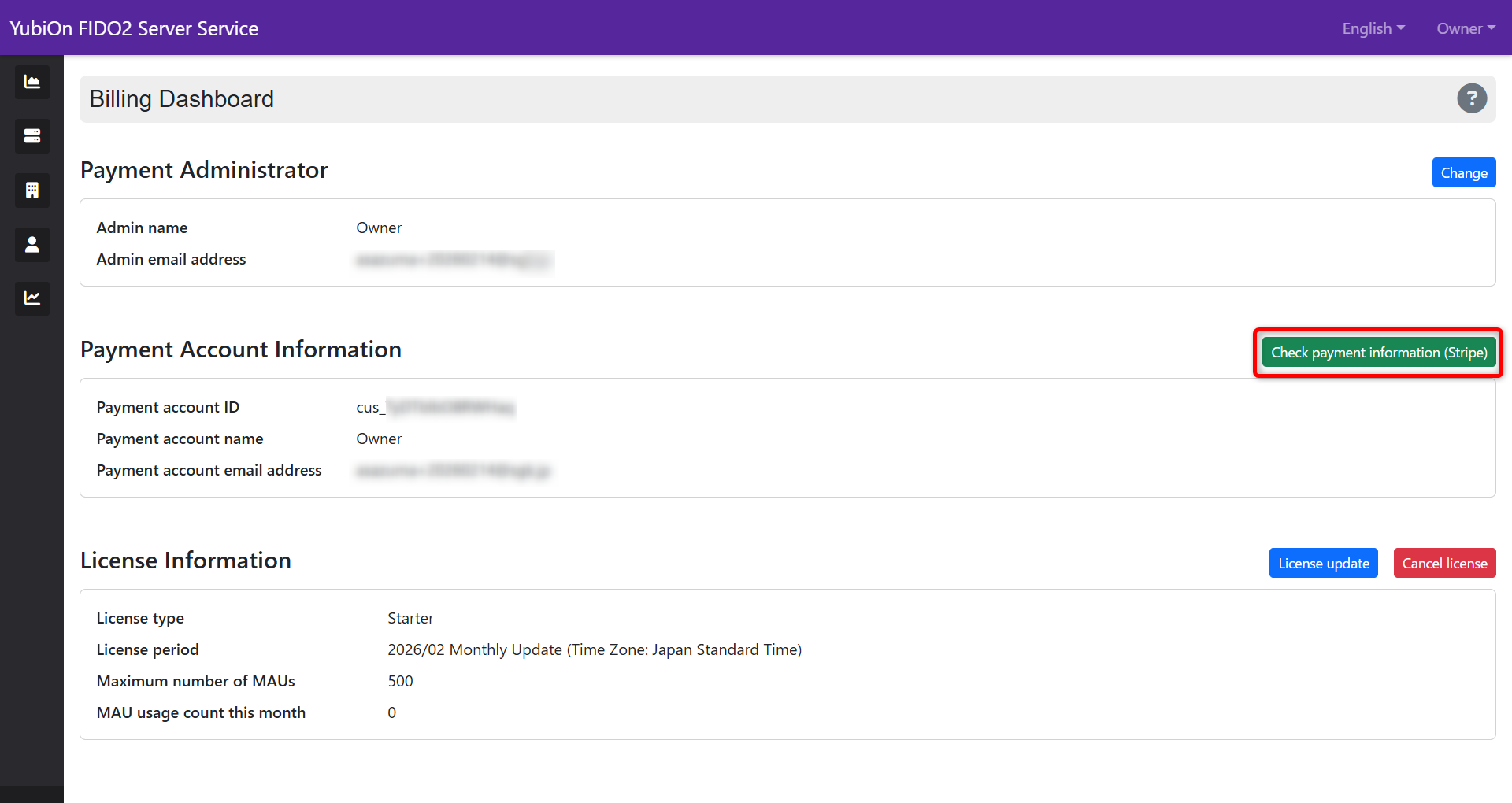
-
The payment management screen provided by Stripe opens.
2. Updating/Changing Credit Card
If the card has expired or you want to change to another card, follow the procedures below.
-
Click [Add payment method] in the “Payment method” section.
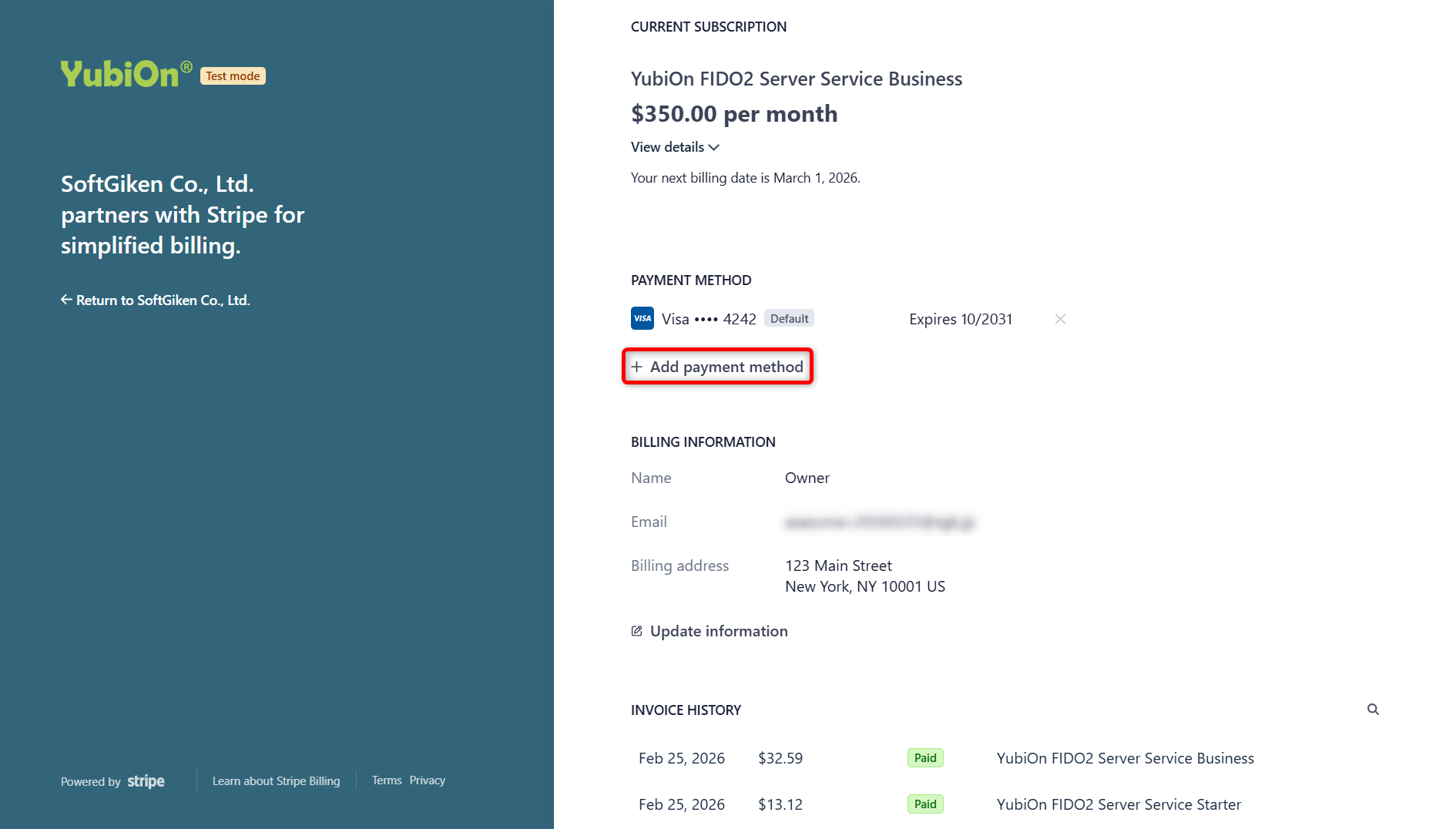
-
Enter new card information (number, expiration date, CVC).
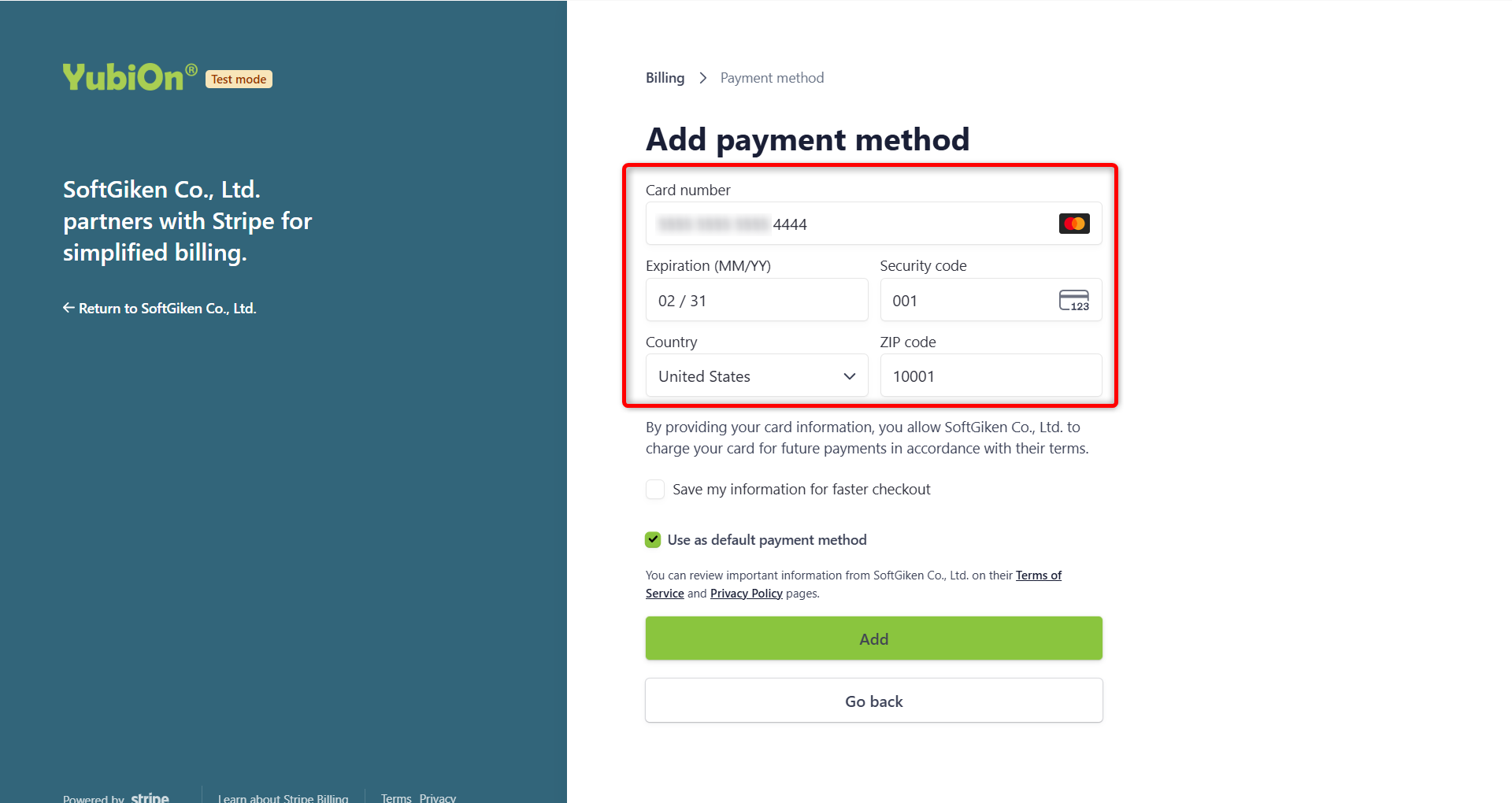
-
Check “Use as default payment method” and click the “Add” button.
* As a result, this card will be used automatically from the next payment.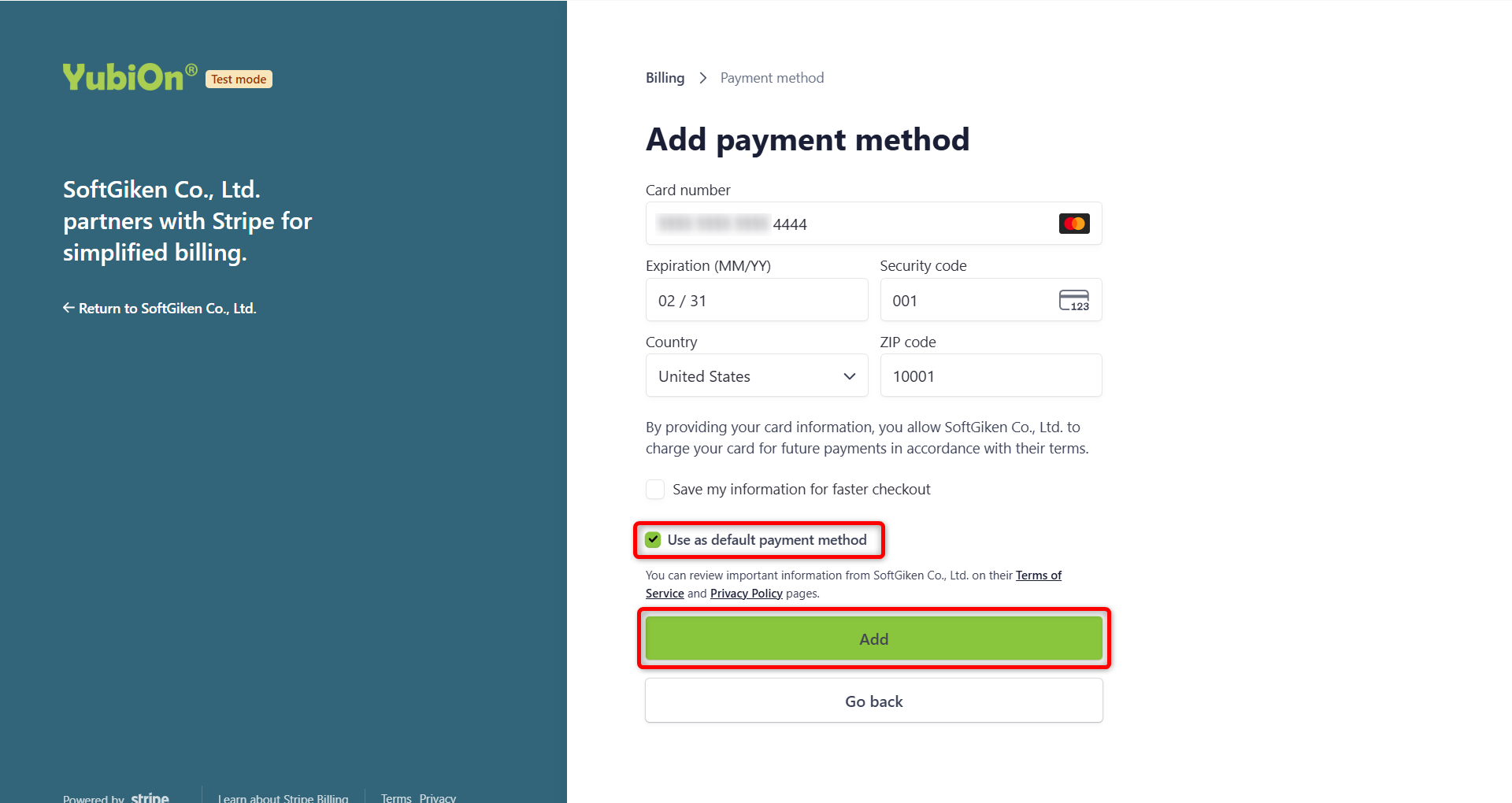
When switching the main payment method
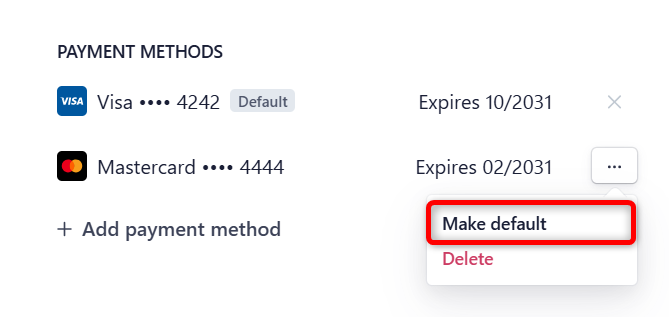
If you added without checking, or if you want to make another already registered card the main one, you can change it at any time from [Make default] on the right side of the target card.
3. Changing Billing Address/Email Address
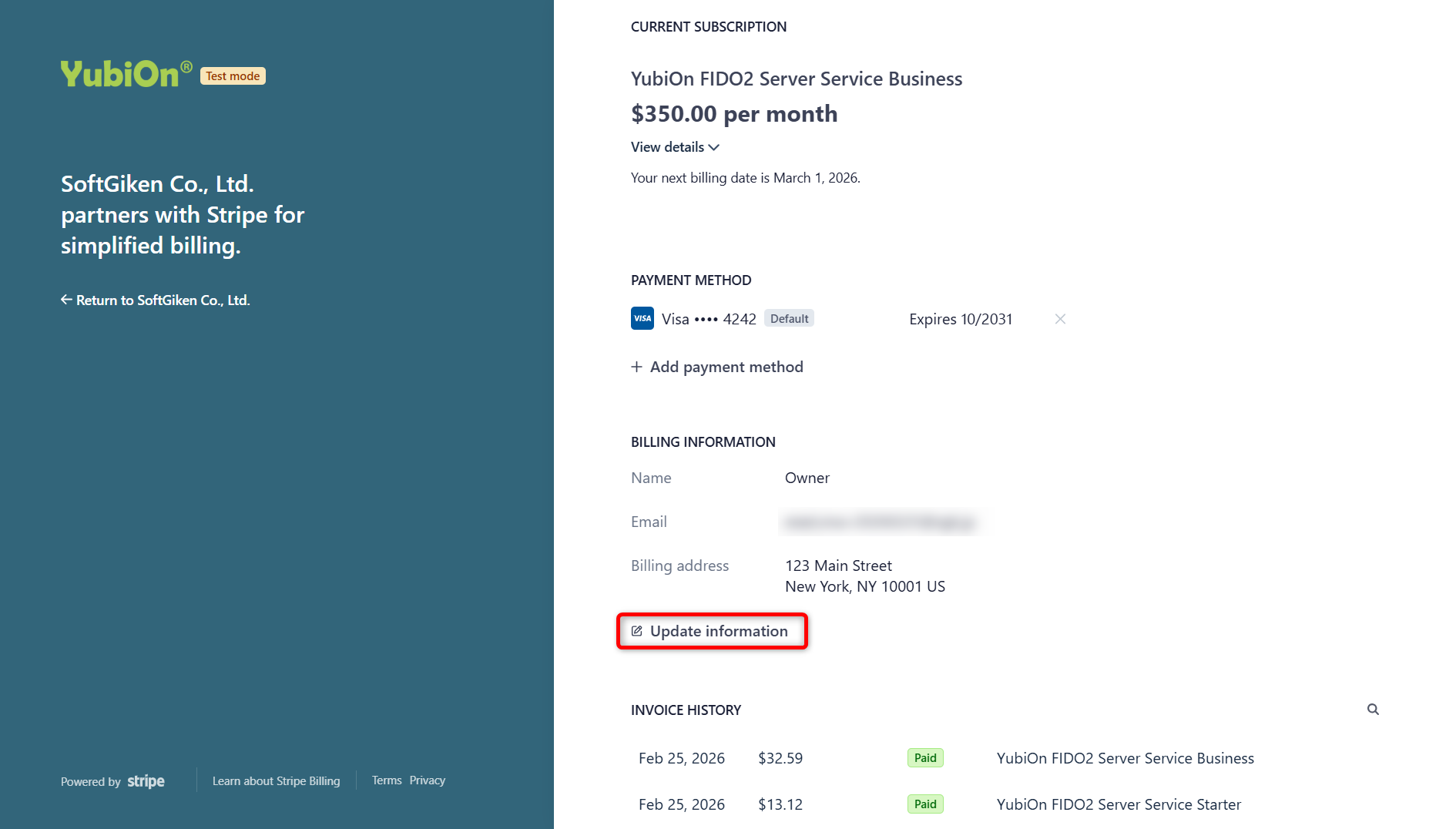
You can change the name, address, and notification email address stated on the receipt or invoice.
-
Click [Update information] in the “Billing information” section.
-
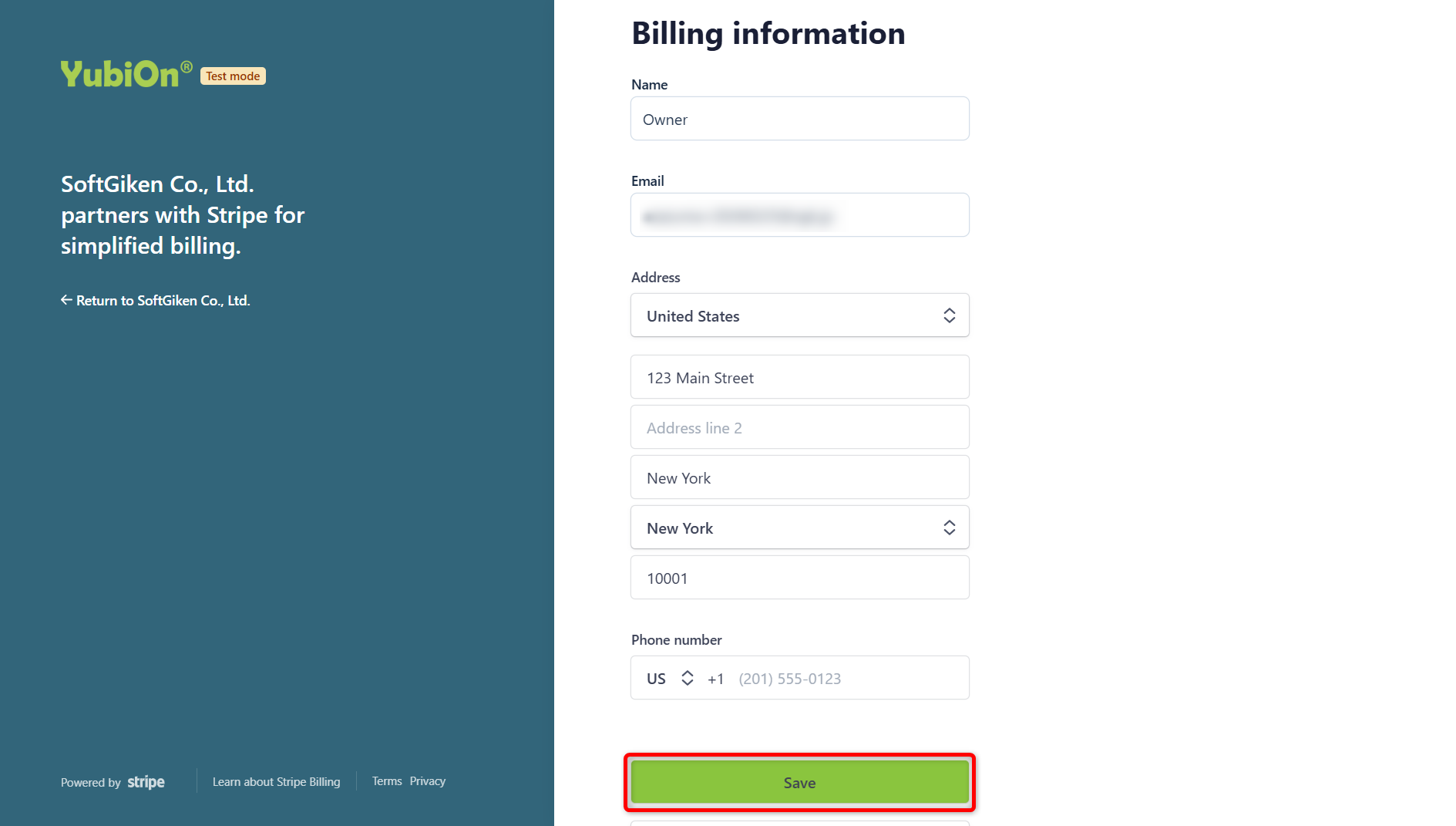
Correct the following items as necessary and click the “Save” button.
- Name: You can set the corporate name, etc.
- Email address: The address where payment completion notifications and receipts will arrive.
- Address / Phone number: Content stated on invoices, etc.
4. Exiting the Payment Management Screen
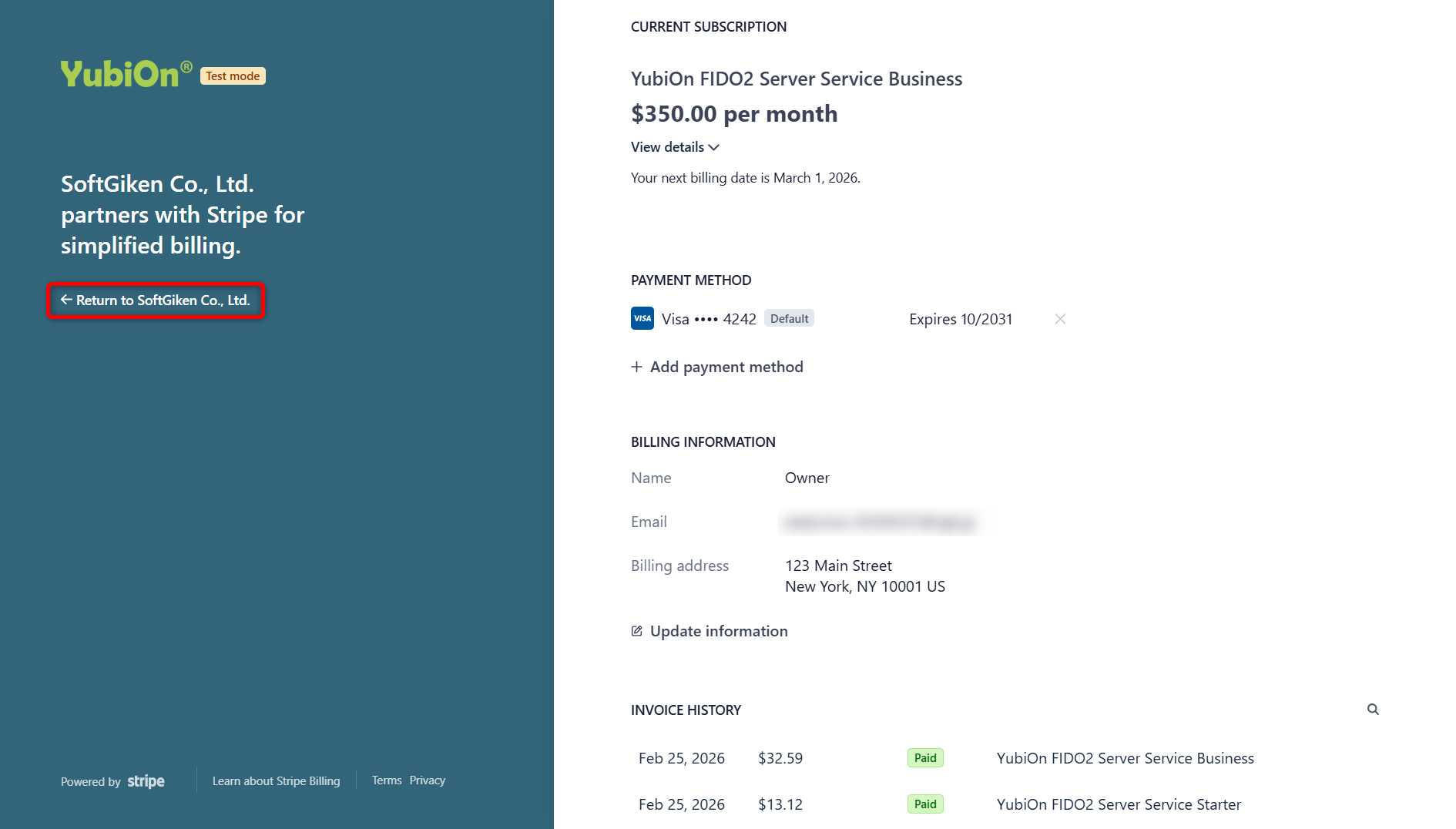
- Click [← Return to SoftGiken Co., Ltd.] on the left side of the screen to return to the billing dashboard of this service.
About reflection timing
Changes made on the Stripe screen are saved immediately. The new information will be reflected in the receipts and invoices downloaded after the change.