License Update
After purchasing a paid license, it is possible to update the license according to the usage status.
Precautions when updating plan
Depending on the content of the update, the timing of fee settlement and the timing of plan reflection differ.
- Update to a higher plan (Upgrade): Reflected immediately. The “difference” from the moment of update to the end of the month will be settled immediately.
- Update to a lower plan (Downgrade): Reflected on the license renewal date of the next month (the 1st of every month). You can continue to use the current plan until the current contract period ends.
1. License Update
Select “Billing Dashboard” from the account menu.
-
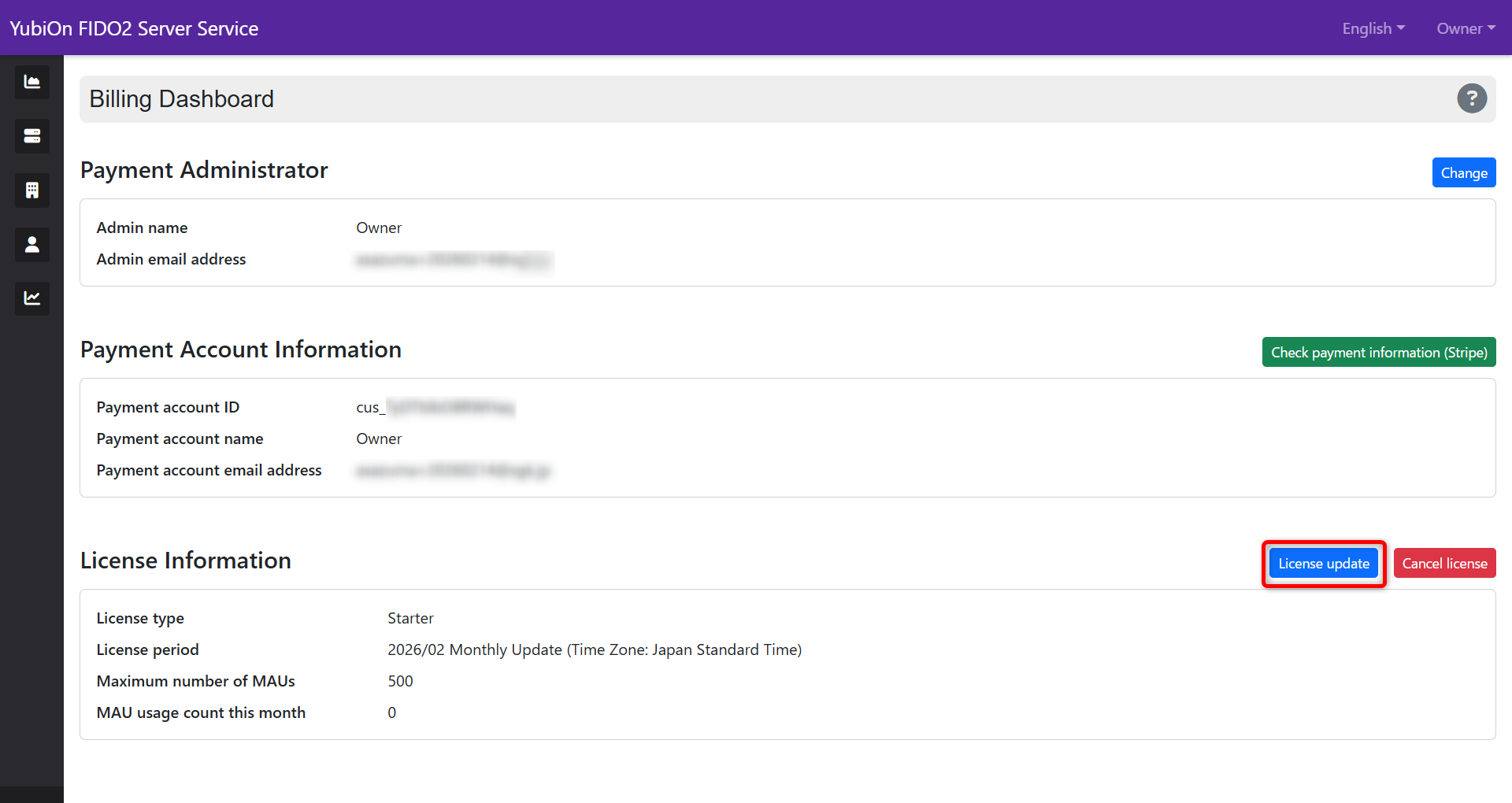
Click the “License update” button.
-
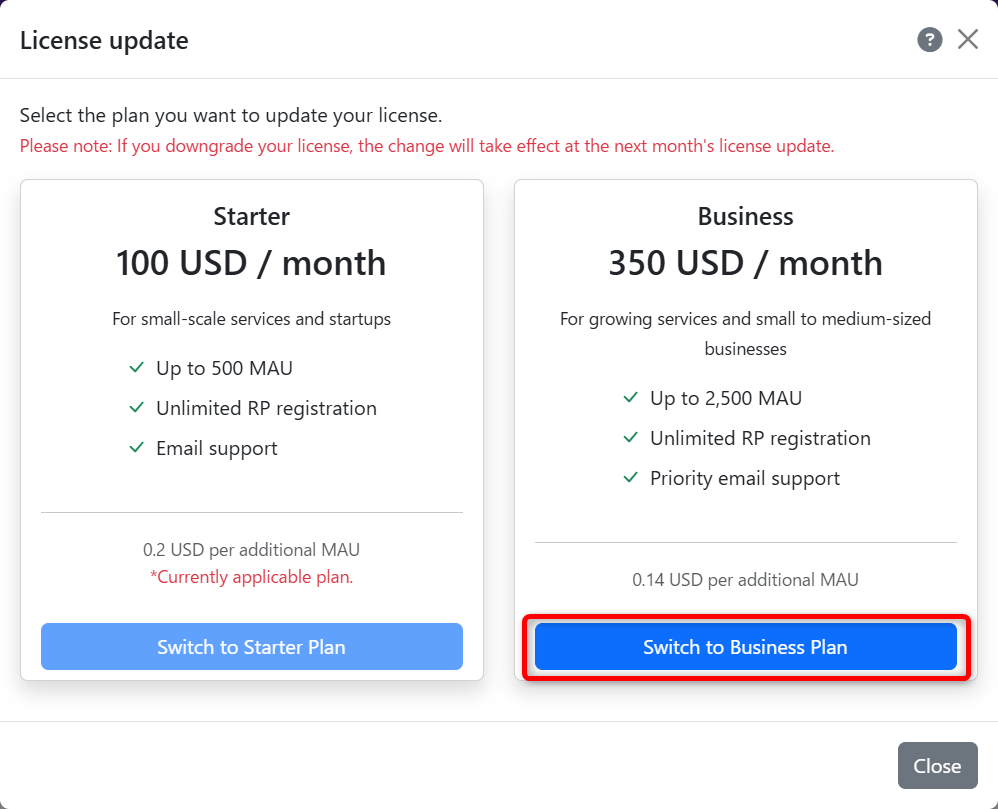
Click the “Switch” button for the desired new plan.
2. Confirmation of Content and Payment
Depending on the content of the update, one of the following processes will be performed.
When updating to a higher plan (e.g., Starter → Business)
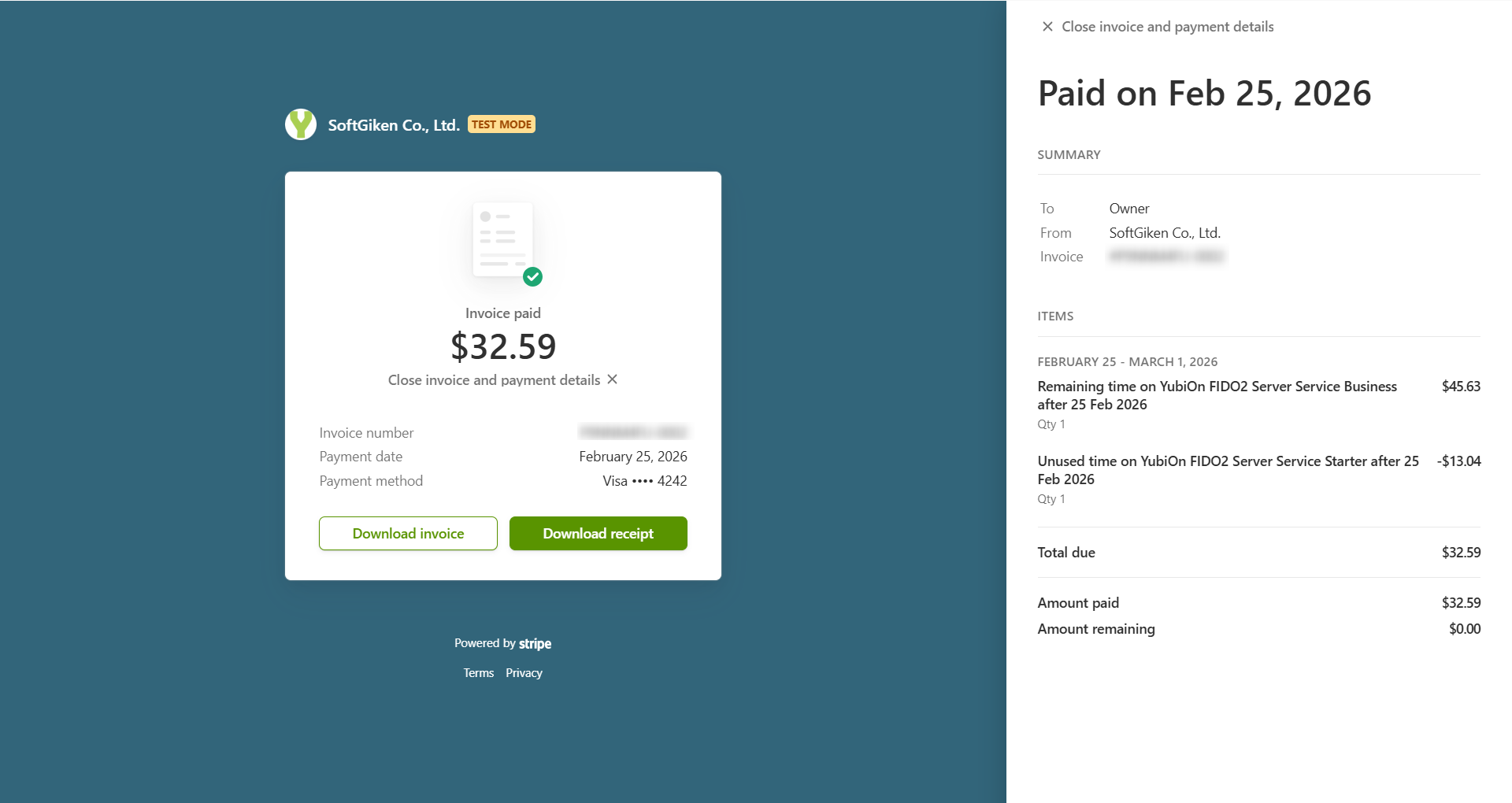
A “settlement of the difference” is performed, where the unused portion of the current plan is refunded and the remaining period of the new plan is purchased.
- Payment timing: Settled immediately upon completion of the operation.
- Calculation example:
- Remaining period portion of the Business plan (plus charge)
- Unused period portion of the Starter plan (minus refund)
- You will pay only the “difference” that offsets the above.
When updating to a lower plan (e.g., Business → Starter)
- Payment timing: No additional settlement for the current month. Payment will be made with the new plan fee on the renewal date of the 1st of the next month.
- Reflection: After the operation, you can continue to use the current plan features until the end of the month.
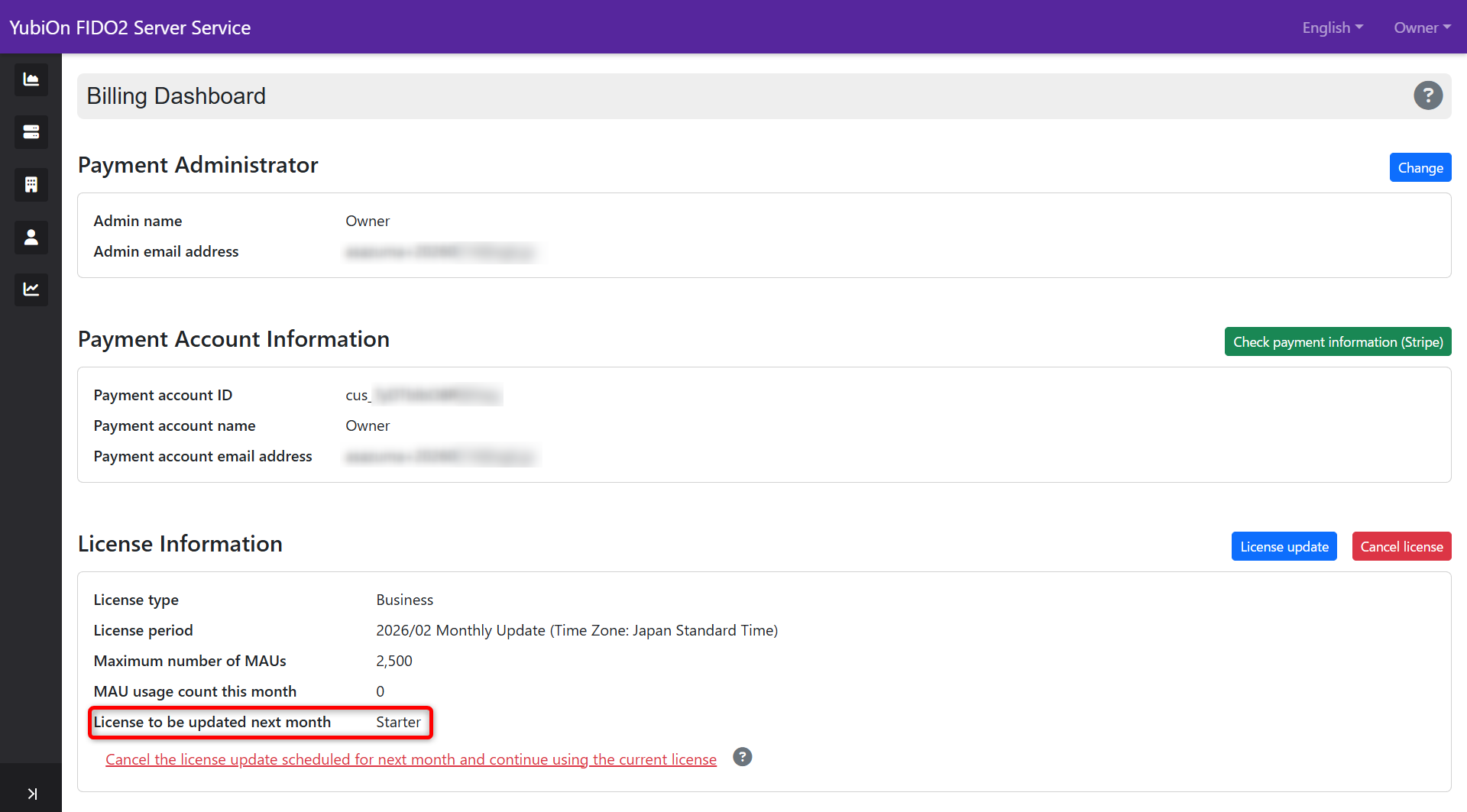
- Display: “License to be updated next month” is displayed in the license information.
Restrictions during downgrade reservation
While a downgrade is reserved (a state where there is a license to be updated next month), new license updates (another plan update) or cancellations cannot be performed.
If you want to update again, please “cancel the license to be updated next month” once, then perform the procedure again.
3. Confirmation of Update Completion
- Return to the billing dashboard and confirm that the license information is updated.
- For upgrade: The new plan name is displayed immediately. (* Immediate settlement is performed)
- For downgrade: The license to be updated next month is displayed.
4. Cancellation of Scheduled Update for Next Month (Cancellation of Downgrade)
You can cancel the downgrade reservation once and return to continuing the current plan contract (automatic renewal with the same plan next month).
-
Click the link “Cancel the license to be updated next month and continue using the current license” displayed in the billing dashboard.
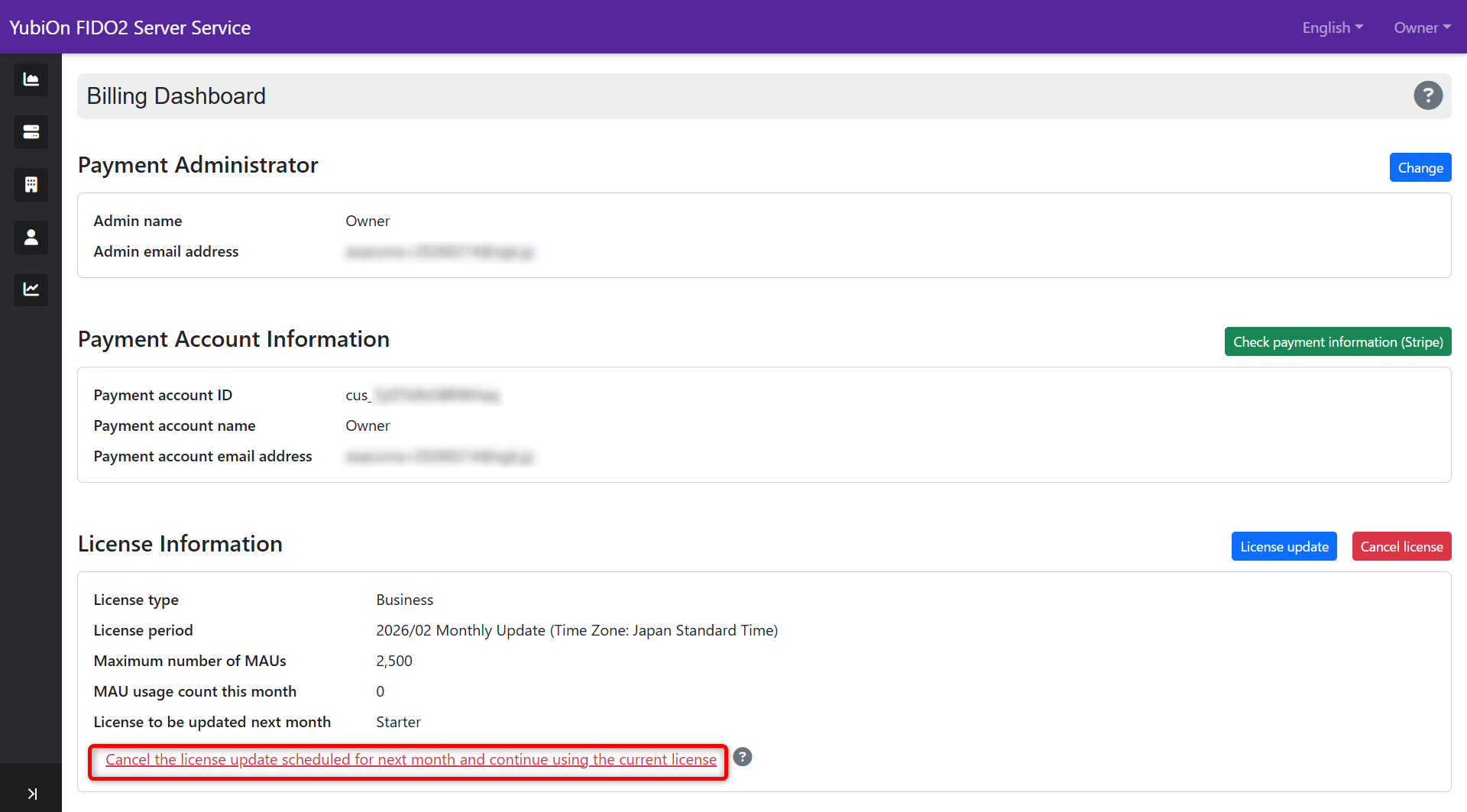
-
Click [OK] in the confirmation message to cancel the plan update reservation for the next month and make the “License update” button available again.