Check History and Document Issuance
Describes the procedures for checking past payment history and viewing/downloading receipts/invoices.
1. Accessing the Payment History Screen
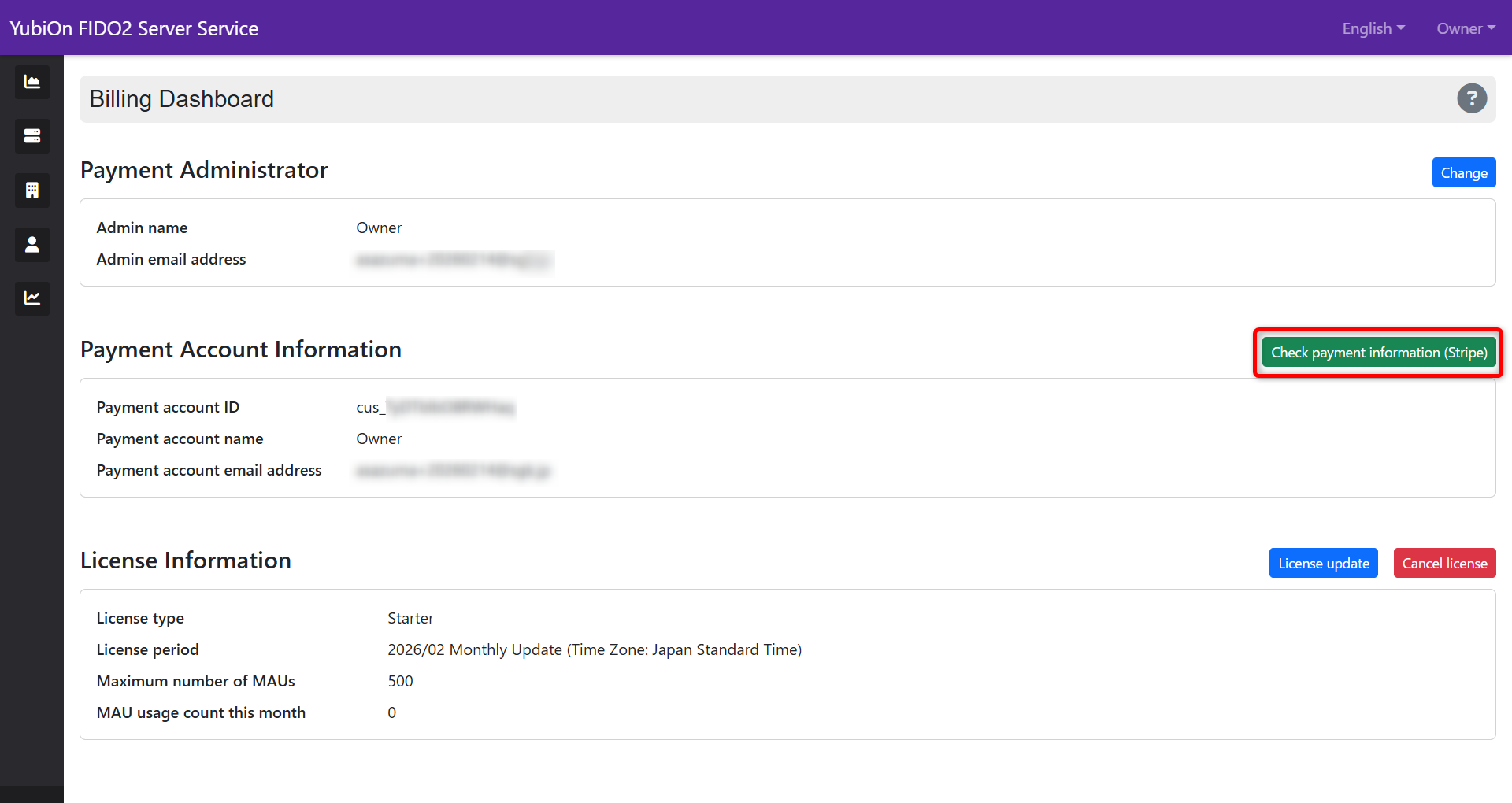
Select “Billing Dashboard” from the account menu.
-
Click the “Check payment information (Stripe)” button.
-
The payment management screen provided by Stripe opens.
2. Checking Payment History
-
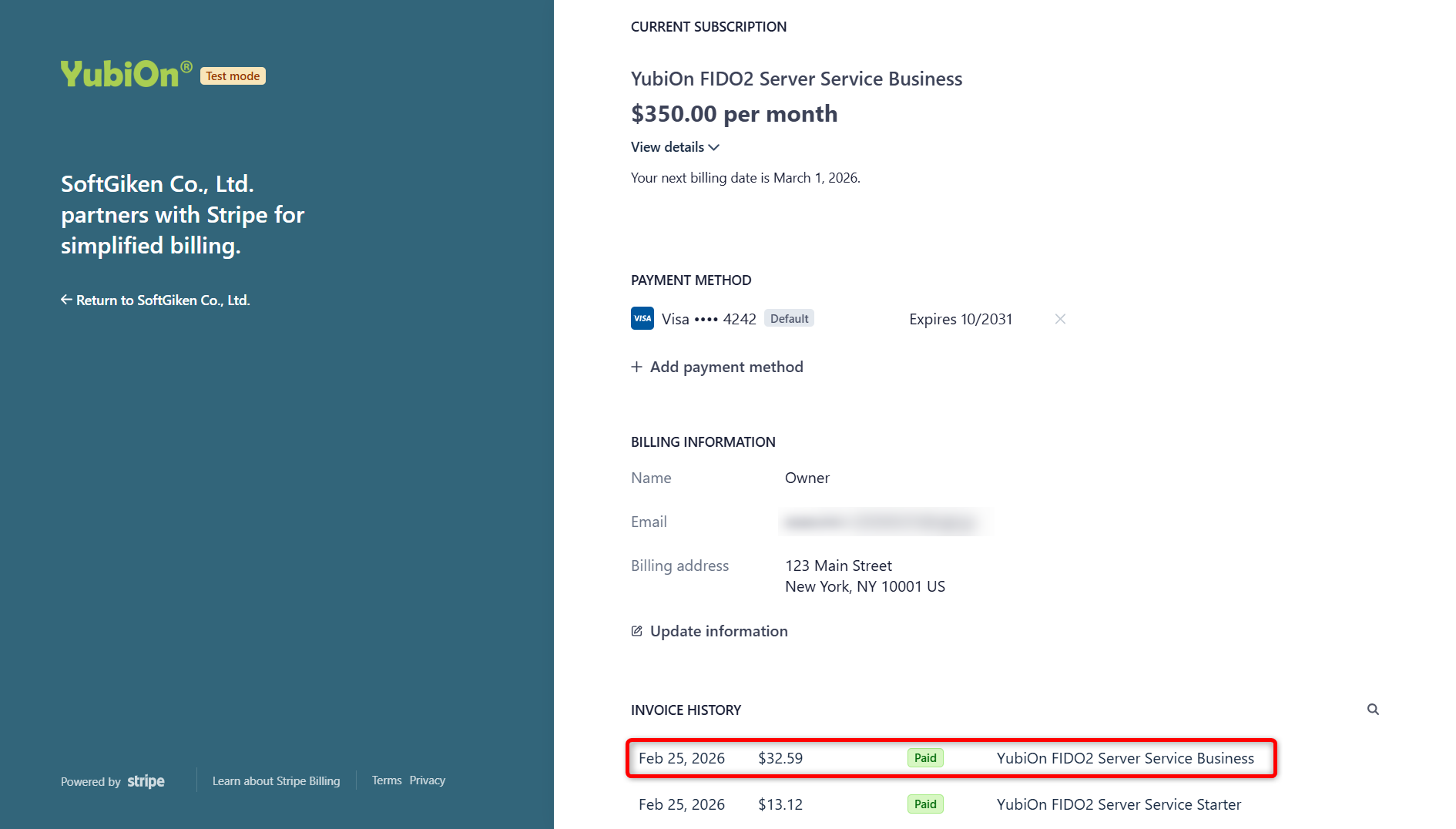
Click the row of the target billing information in the “Invoice history” section.
-
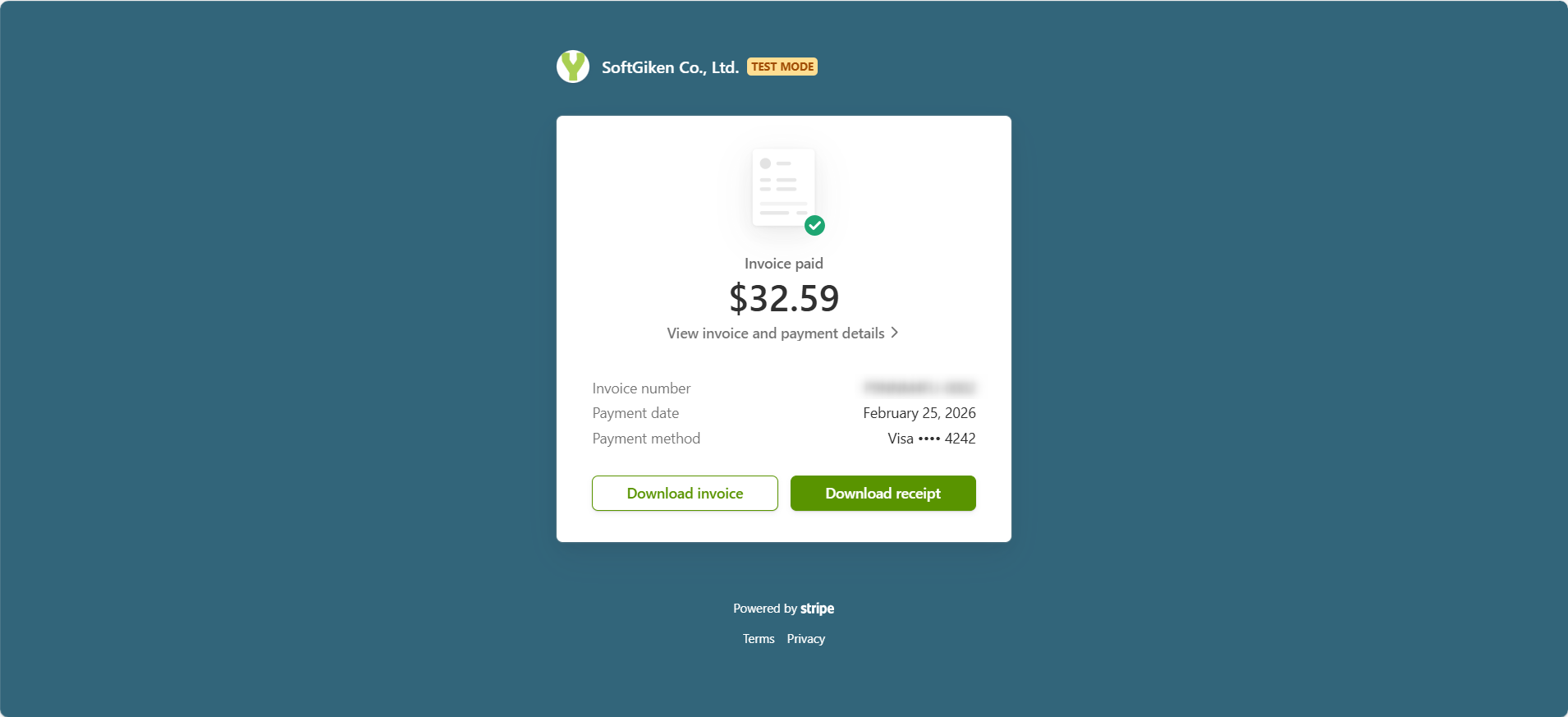
Check the invoice screen.
-
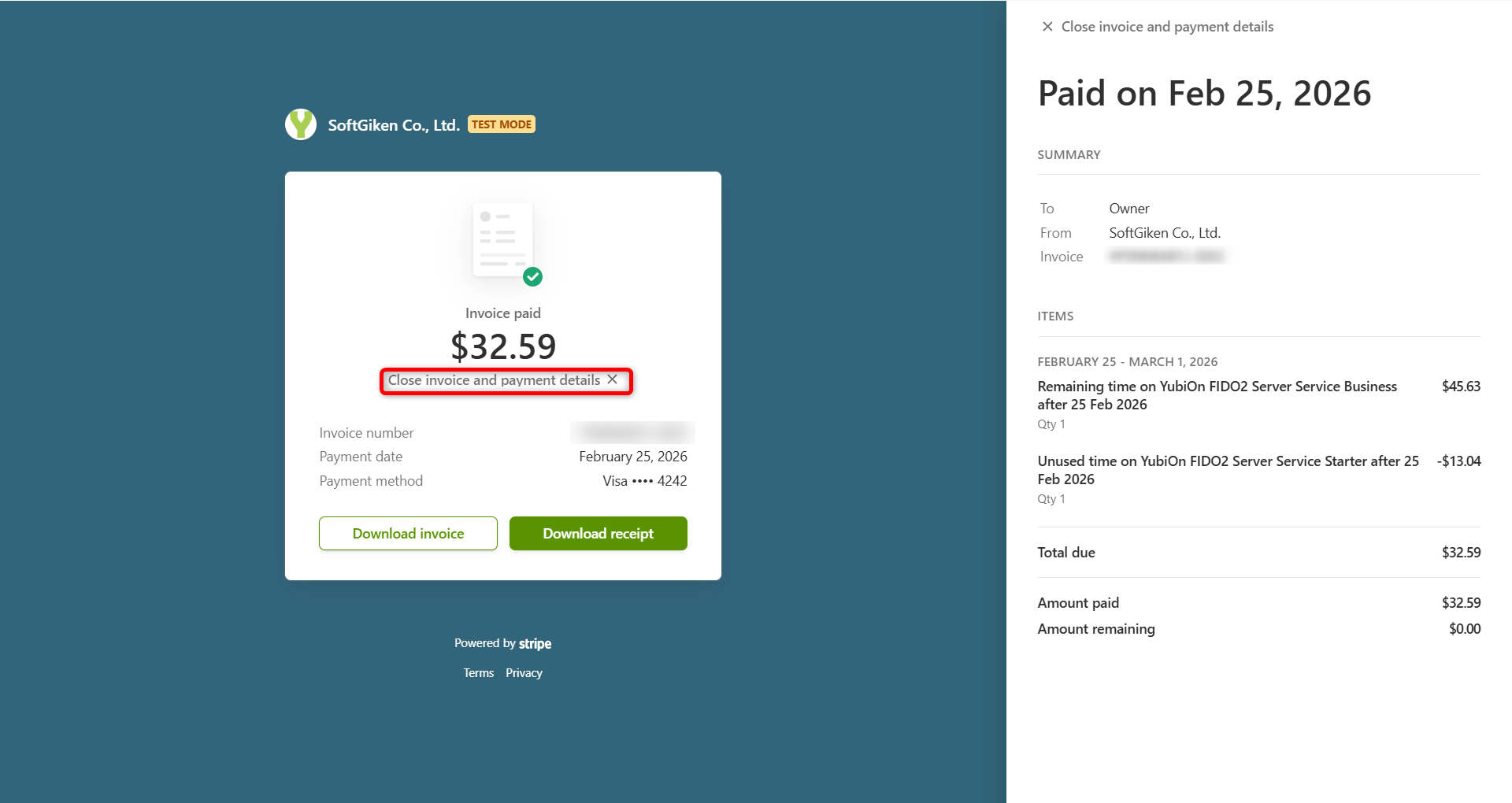
It is also possible to check payment details (breakdown, applied prorated calculations, etc.) from the invoice screen.
3. Downloading Receipts/Invoices
-
Click the row of the target billing information in the “Invoice history” section.
-
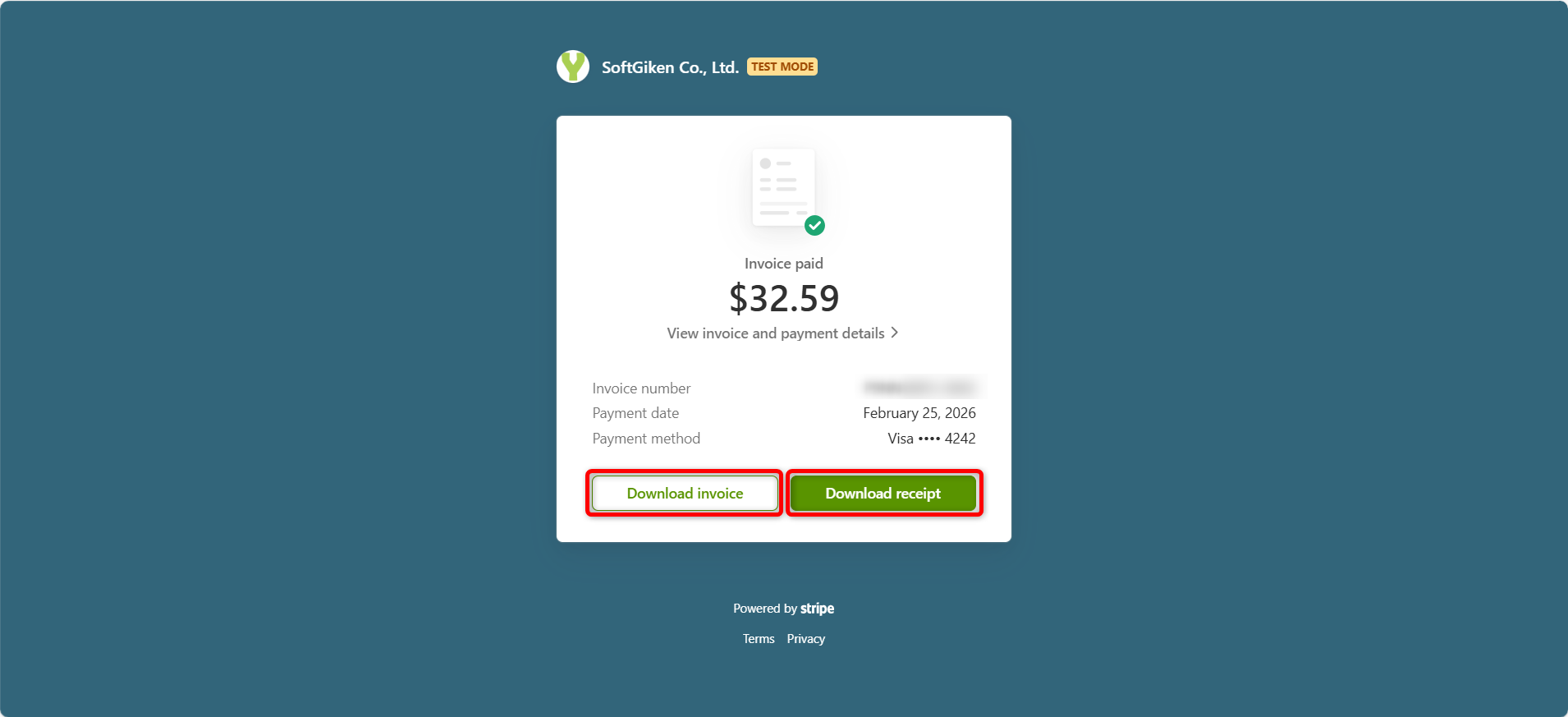
On the invoice screen, click the following buttons according to the purpose.
- [Download receipt]: When using as proof of payment
- [Download invoice]: When documents in invoice format containing the breakdown are required
About compliance with the invoice system
The “invoice” downloaded meets the requirements for a qualified invoice. If you need to change the name or address, please refer to Change Credit Card Information/Billing Address, update the information, and then download it again.
4. Confirmation by Email
When the payment is completed, a payment completion email is sent from Stripe to the registered email address.
- You can also display the receipt directly from the link in the body of the email.
- If re-issuance is necessary due to loss of the email, etc., you can download it as many times as you like from the management screen using the procedures above.